Named Ranges are one of the MOST underused features in Excel, and that’s a real shame, because they save time, cut the risk of error, and make formulas so much easier to write, read and trust.
What is a Named Range?
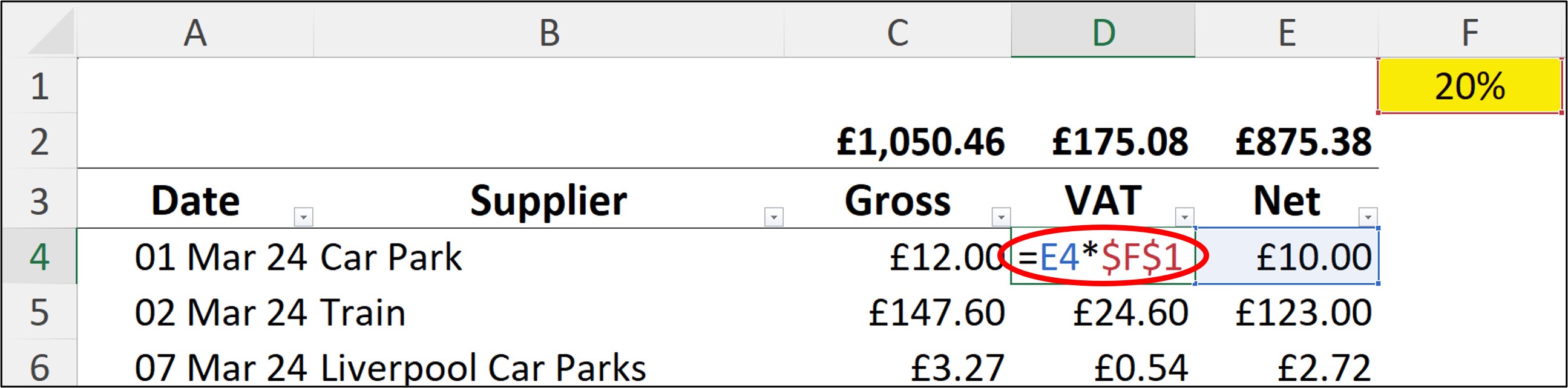
It’s simply a plain English name given to a cell, or a group of cells, which you can then use in a formula instead of the cell reference itself. A formula that reads VAT_Rate*Total tells you everything at a glance. A formula that reads F1*Total tells you nothing without going and checking what’s actually sitting in F1.

How to create one
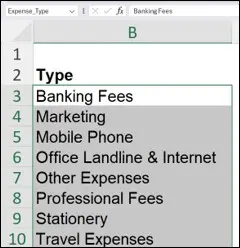
Select the cell or range, click into the Name Box just to the left of the formula bar, type the name you want, and press enter. A few rules to keep in mind:

- Do: make the name as long or short as you need, mix upper and lower case and numbers, and use an underscore where a space would normally go.
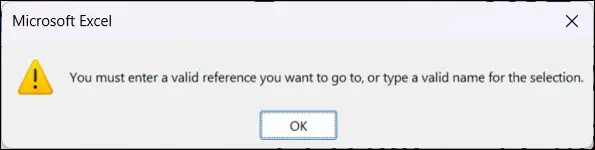
- Don’t: start the name with a number, use spaces or dashes, or name it the same as an existing cell reference (like B2).
You can also highlight your data first and choose Create from Selection under the Formulas ribbon, which is a real time saver if you need to name several columns or rows at once.


Finding and editing a Named Range
Click the small arrow to the right of the Name Box for a full list of every Named Range in the file, across ALL sheets, perfect if you’ve forgotten where one lives or someone else created it. To edit one, go to Formulas, Name Manager, select it, and update the reference at the bottom. If you insert or delete rows or columns within the range, it updates automatically too.

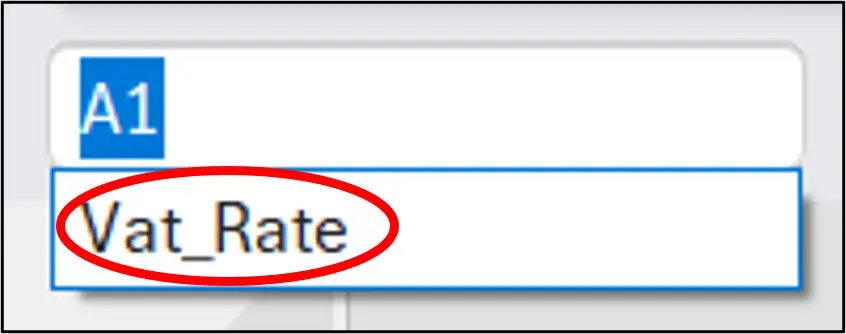


Top Tip: on a PC (not available on Mac, unfortunately), pressing F3 while editing a formula brings up the full list of Named Ranges to choose from, so you never need to remember the exact spelling.
Where they really shine
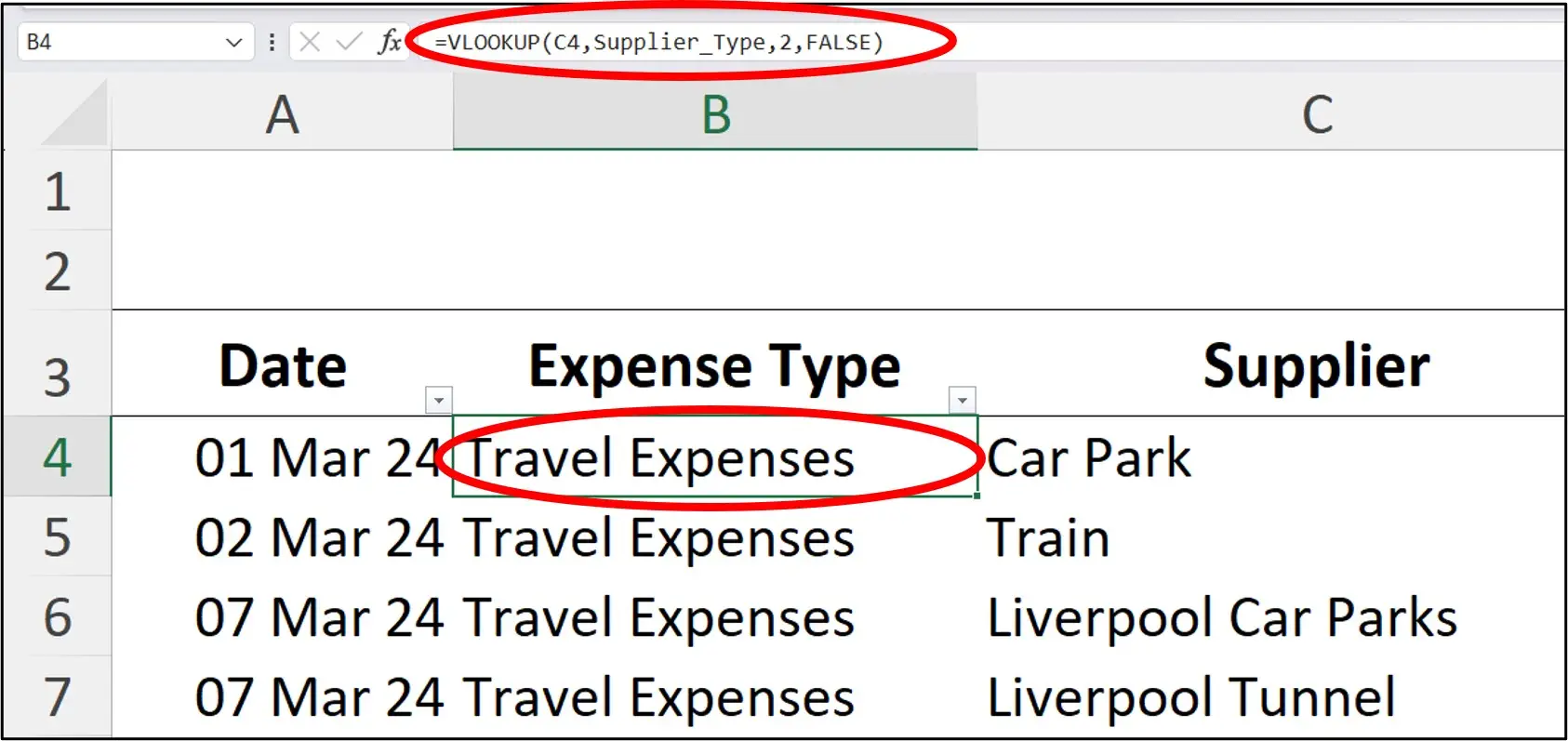
Named Ranges come into their own once you start combining them with other features. Use one as the source list for a VLOOKUP or XLOOKUP and the formula reads like a sentence. Use one as the source for a Data Validation drop down list and it’s instantly clearer what the list actually contains. Link a Pivot Table to a Named Range instead of a fixed cell reference and you never have to manually extend the range again, it just updates itself (perfect if you have lots of Pivot Tables, I usually do!).


I’ll be honest, I’m pretty obsessed with Named Ranges and use them constantly, and I really hope this has convinced you to give them a go too.