The IF formula (or IF function) has to be one of the most powerful tools for decision making in Excel, and also one of the most misunderstood. Whether you’re flagging overdue invoices, grading scores or categorising sales, IF lets Excel evaluate a condition and return a result based on your own criteria.
The basics
An IF formula has three parts:
the logical_test (the condition to check),
value_if_true
value_if_false.
For example:
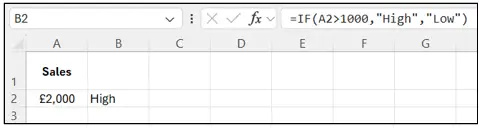
=IF(A2>1000,”High”,”Low”)
checks a sales figure and returns High if it’s over 1000, or Low if it isn’t.
You can use any of the usual operators in your test too, equals, greater than, less than, greater or equal, less or equal, and not equal.
Real examples worth having in your back pocket
Pass or fail: =IF(A2>=50,”Pass”,”Fail”).

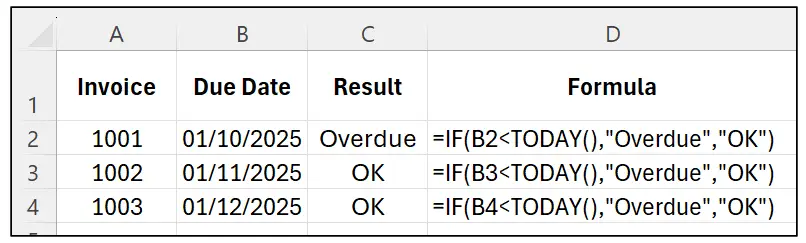
Overdue invoices: comparing a due date against TODAY() and returning Overdue or OK depending on the result, and because it’s checked against today’s date rather than a fixed one, it keeps working correctly every single day without you touching it.
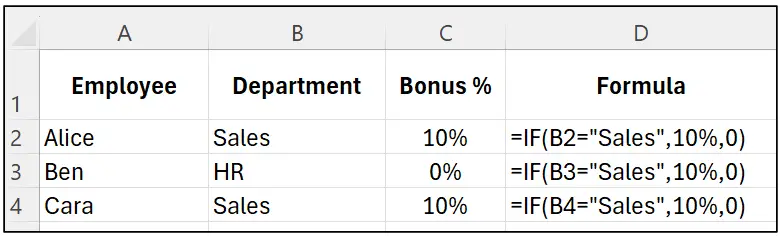
Department bonus: =IF(department=”Sales”,10%,0), applying a bonus only where it’s due.
Nested IF, for tiered logic
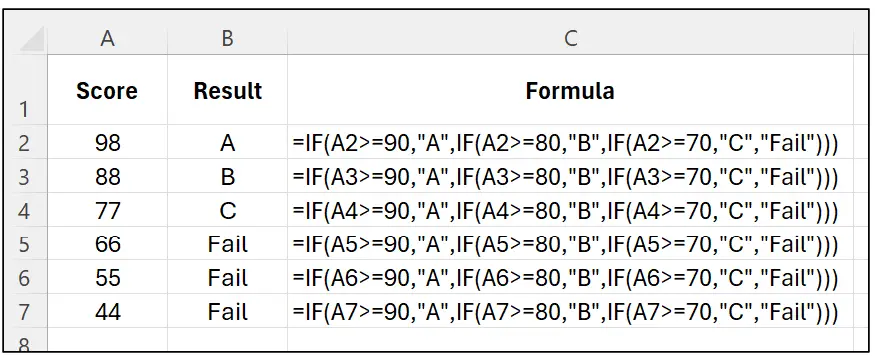
A nested IF places one IF formula inside another, letting you evaluate several conditions in sequence, brilliant for grading, pricing bands or age groups.
For example checking a score against 90, then 80, then 70 in turn, returning A, B, C or Fail as appropriate.
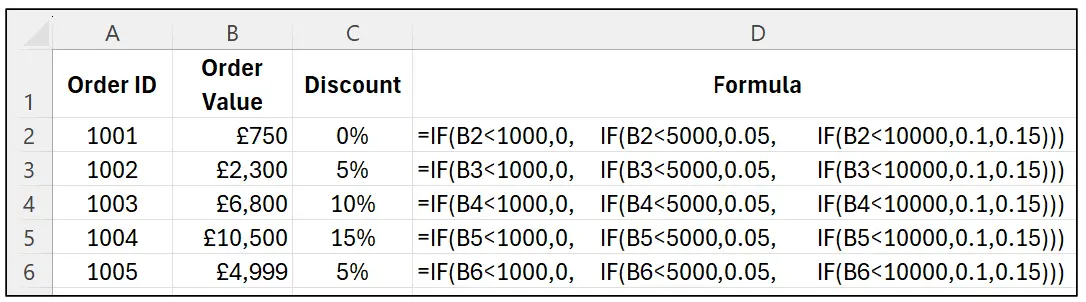
Top Tip: use Alt+Enter inside the formula bar to add line breaks within the cell, it makes a long nested IF far easier to read back later.
Combining IF with AND and OR
Once you’re comfortable with the basics, combining IF with AND and OR opens things up further.
AND only returns TRUE if ALL conditions are met, for example checking a sales rep has hit both a minimum number of units AND a minimum revenue figure before awarding a bonus.

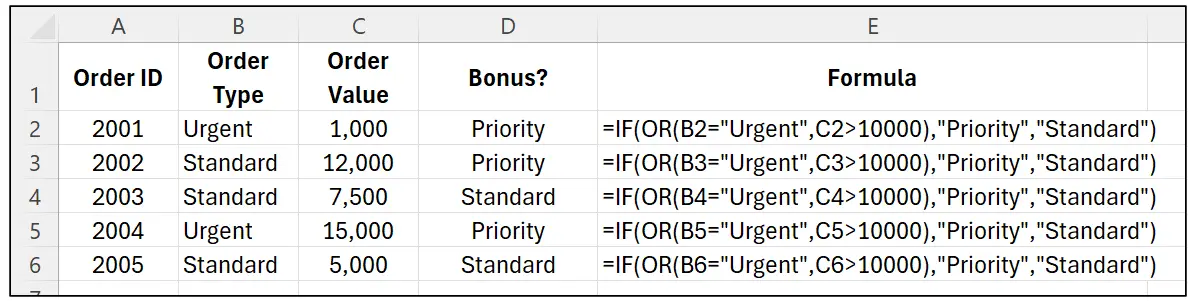
OR returns TRUE if ANY condition is met, for example flagging an order as Priority if it’s either marked Urgent OR over a certain value, regardless of the other.
Common mistakes to watch for
- Missing a closing bracket, count carefully or use line breaks for clarity.
- Forgetting quotes around text (“Sales” not Sales).
- Swapping the true and false values round by accident.
- Extra spaces or inconsistent case causing a text match to silently fail.
Top Tip: Excel’s Evaluate Formula tool (Formulas tab, Evaluate Formula) lets you step through a formula one stage at a time, perfect for spotting exactly where a bracket’s gone astray.
Start simple, get comfortable with a single IF, then layer up with nested IFs and AND/OR as your confidence grows. Once it clicks, you’ll wonder how you managed a spreadsheet without it.