Excel sort is one of the most commonly used tools, because it’s so obvious what it does, alphabetical, numerical, date or even colour order, in just a couple of clicks. It’s super simple to use, but it’s also one of the easiest things to get properly wrong, so let’s cover both.
The mistake that causes the most damage
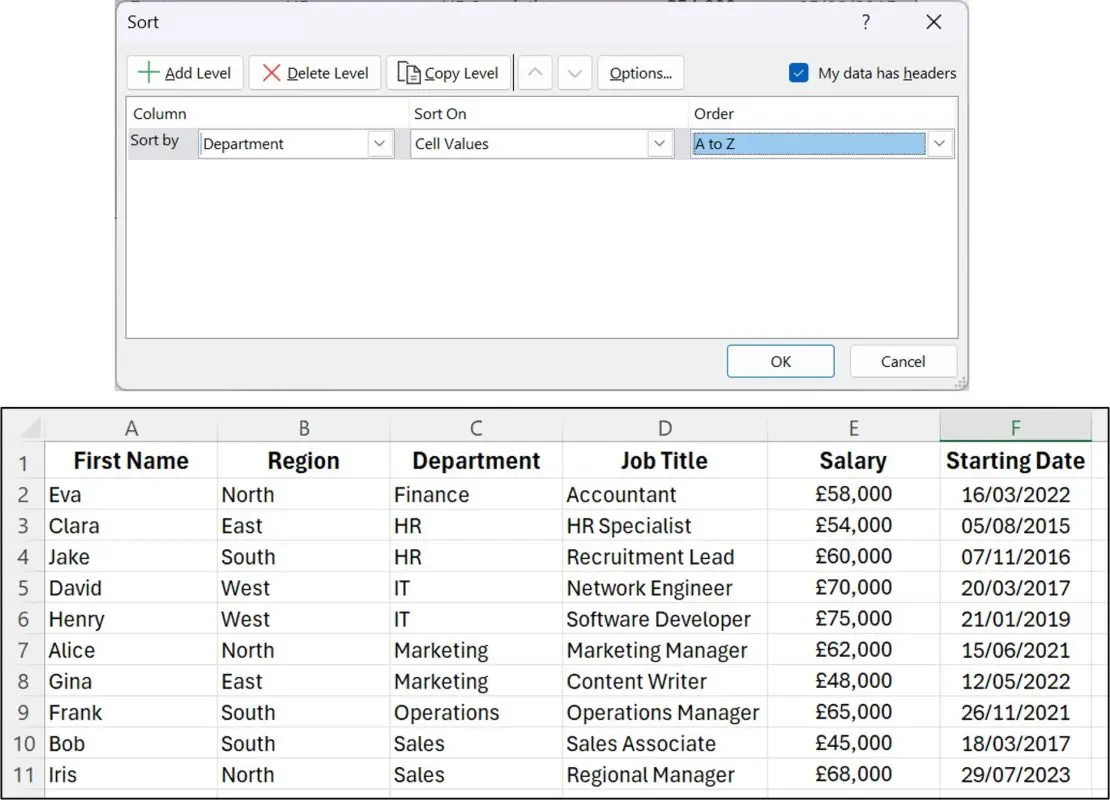
The single most important step is selecting ALL of your data before applying Sort, every column, not just the one you’re sorting by. If you only select part of your data, Excel will sort that column on its own and leave the rest of the row behind, which scrambles names, dates and figures that used to belong together. This is genuinely easy to do by accident and can be hard to spot afterwards, so always check your data still looks right immediately after sorting.
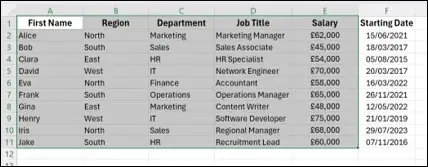
Top Tip: use the scroll bars at the bottom and right of the screen to double check every row and column has actually been selected before you apply Sort.
How the Sort screen works
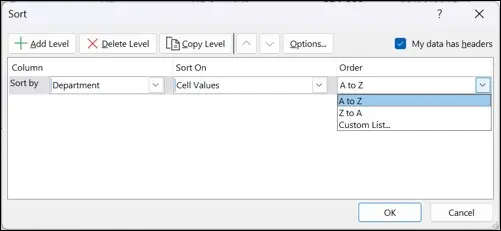
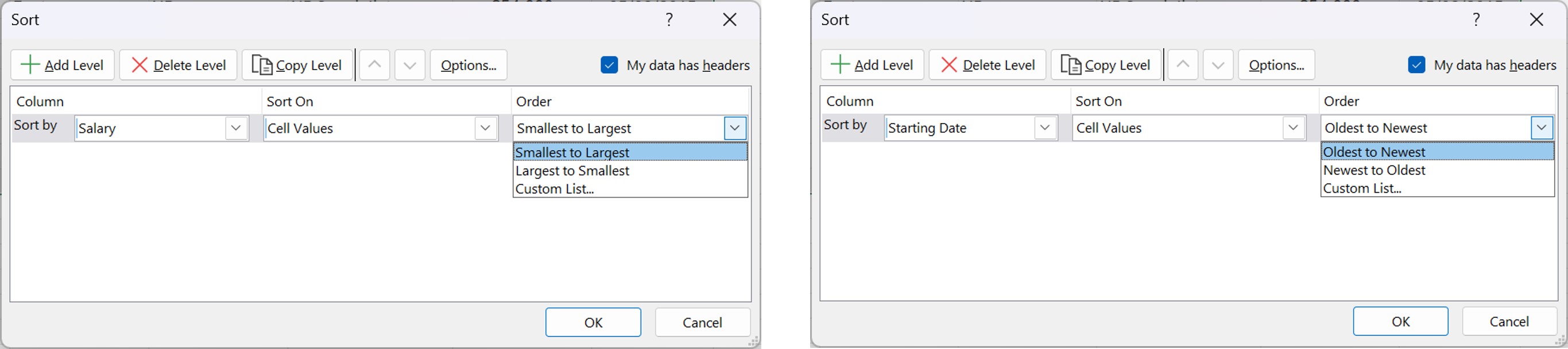
From the Data ribbon, select Sort, and you’ll get three choices: Sort By (the column), Sort On (usually Cell Values, though you can also sort by cell colour, font colour or a conditional formatting icon), and Order (A to Z, Z to A, or a Custom List).

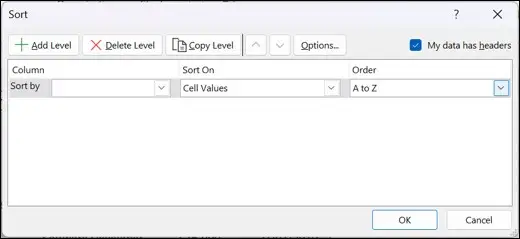
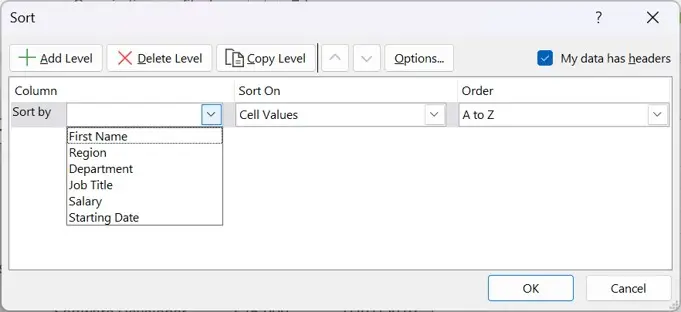
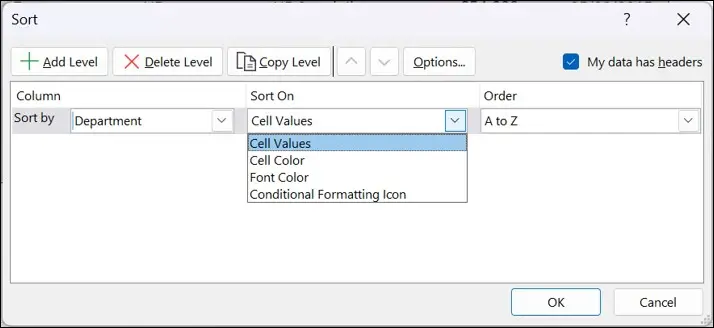
Sorting by more than one column
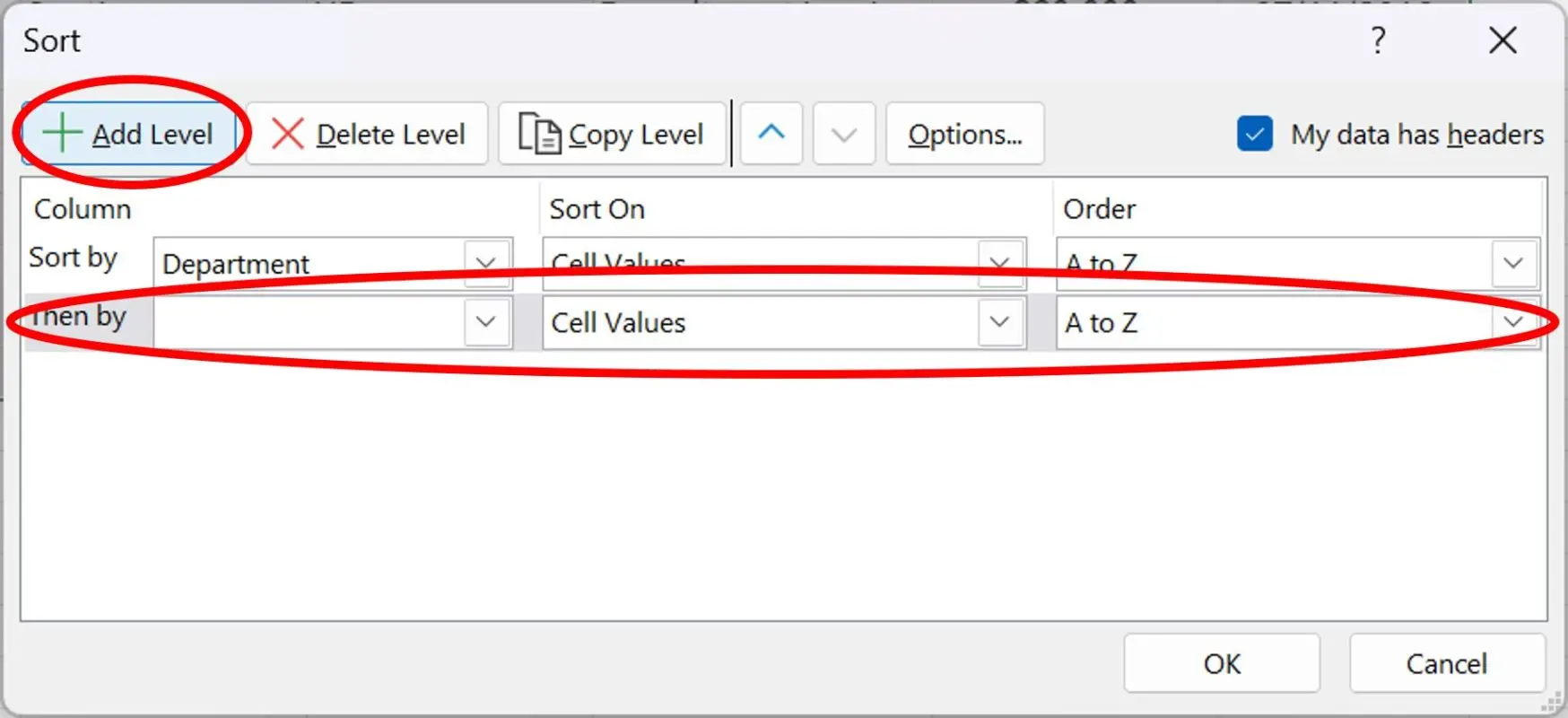
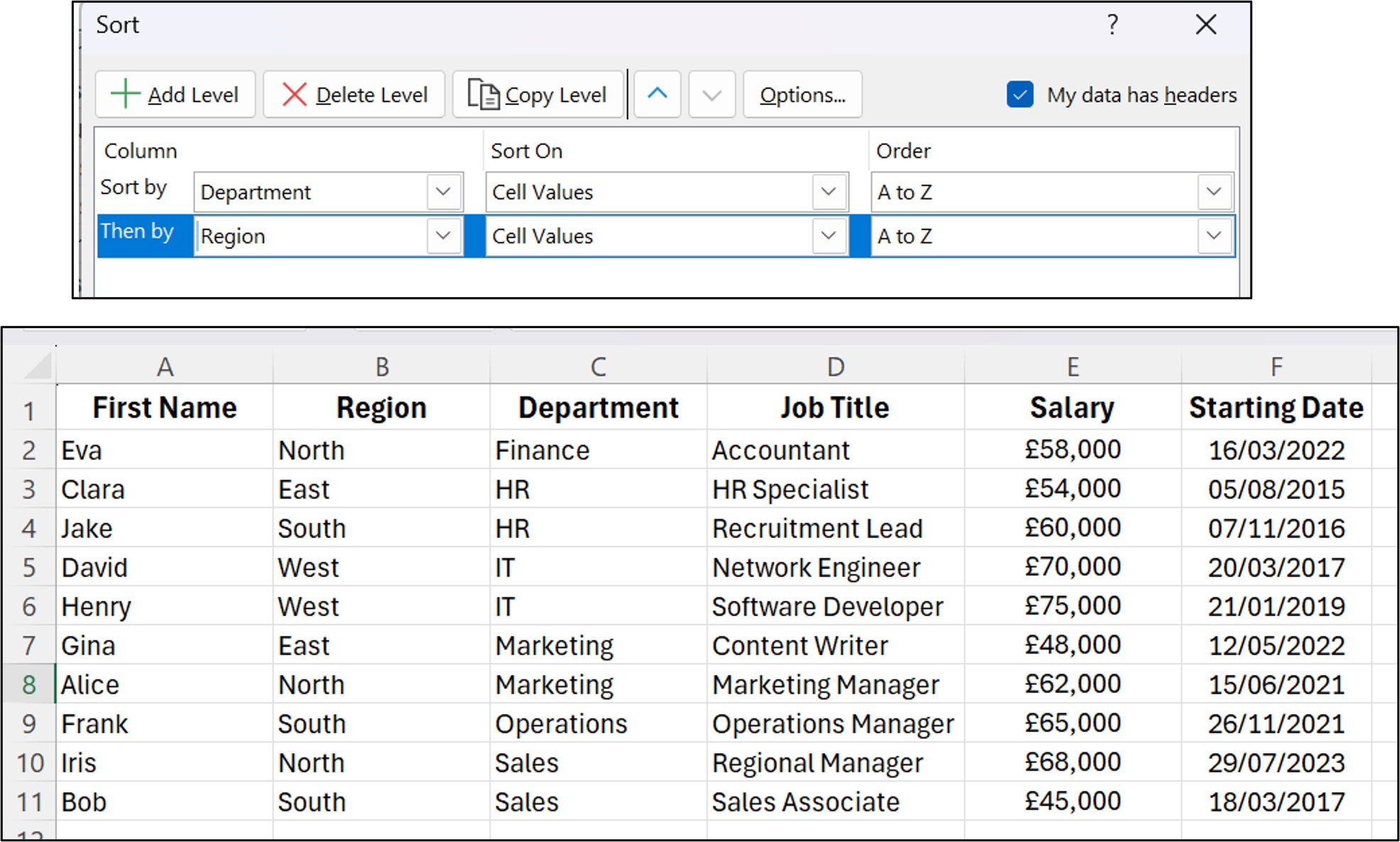
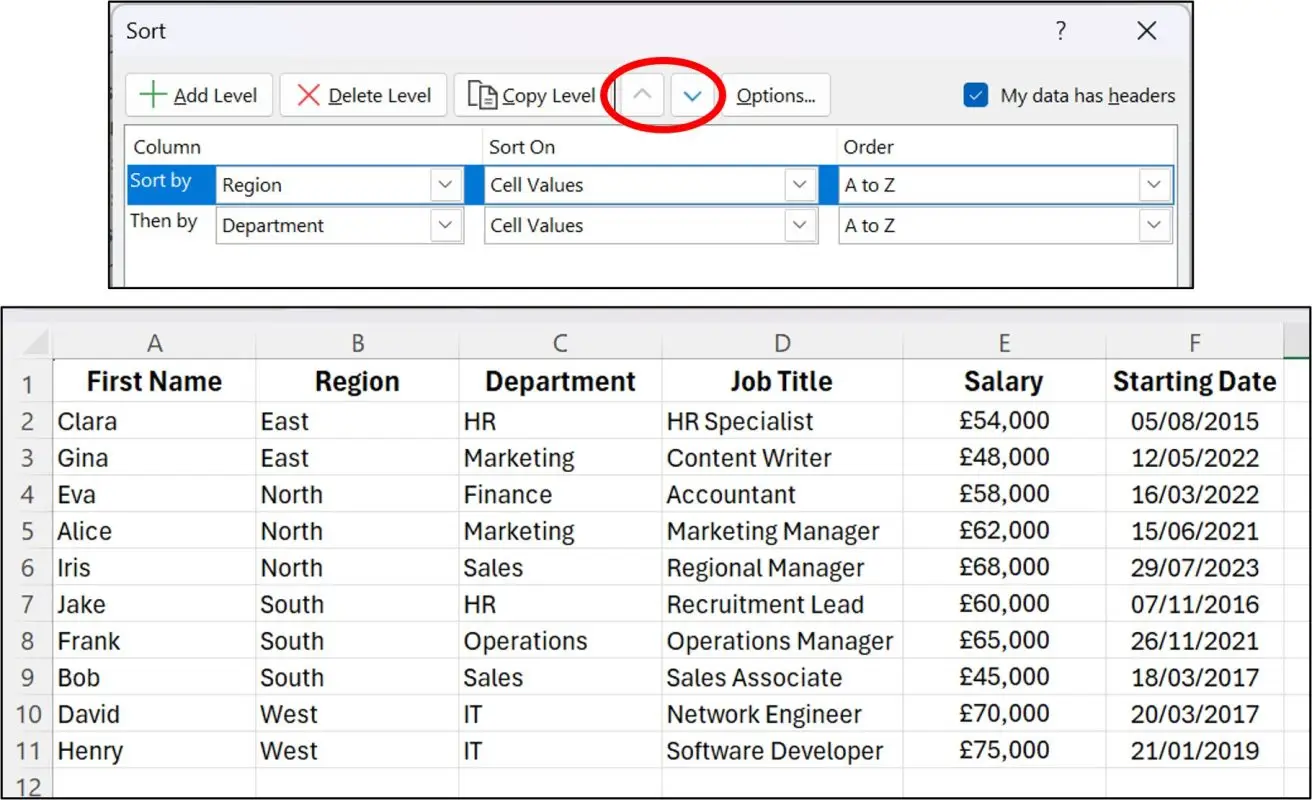
Make your first selection as above, then click Add Level to bring in a second criteria, for example sorting by Department first and Region second. It’s just as simple to switch which one takes priority, select either criteria in the Sort box and use the arrows at the top to toggle the order.
Custom Lists
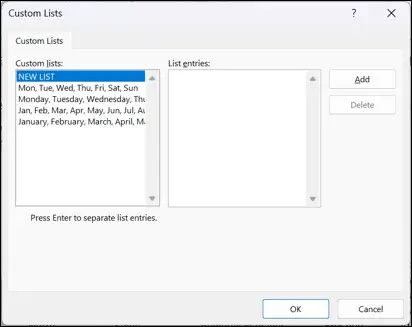
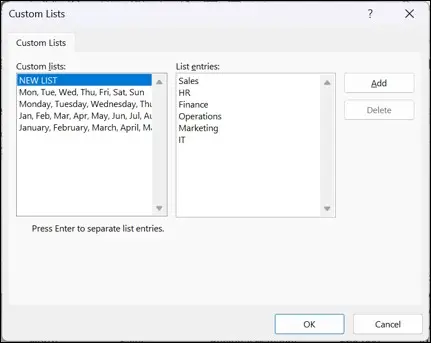
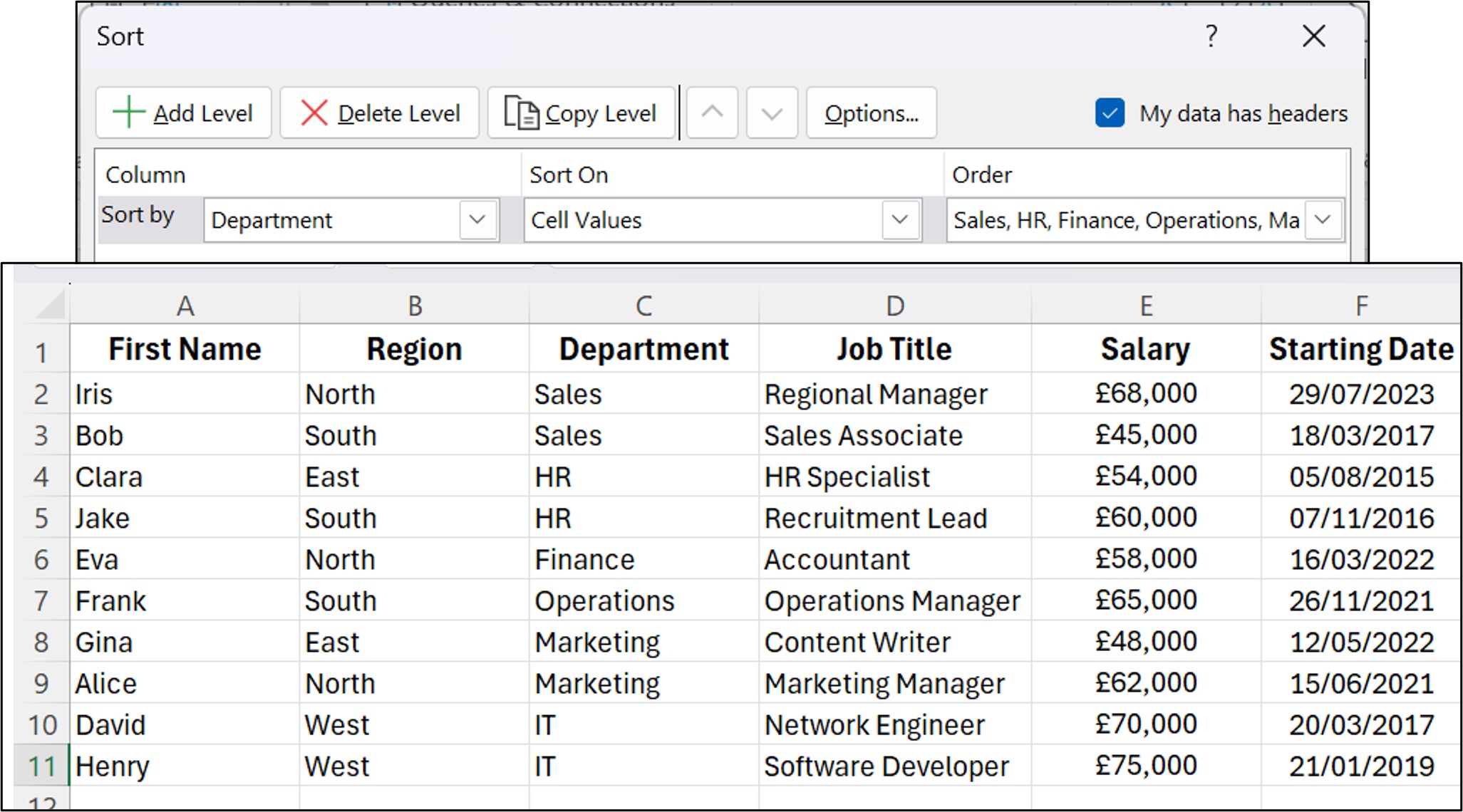
Sometimes you want an order that isn’t alphabetical, say Sales and Operations at the top of a department list regardless of the alphabet. Choose Custom List from the Order dropdown, select New List, type your entries in the order you want them, and click Add. It’ll be saved and ready to use again next time too.
A word of warning
There’s no way to return data to its original state once you’ve saved after sorting, so it can be a genuinely risky function if you’re not careful. Undo works until you save, after that your only option is to restore an earlier version of the file, so it’s worth checking your data carefully before you move on. Also watch out for a blank first row in your selected range, Excel needs that row to contain your actual column headers, otherwise it’ll try to sort them as if they were data too.
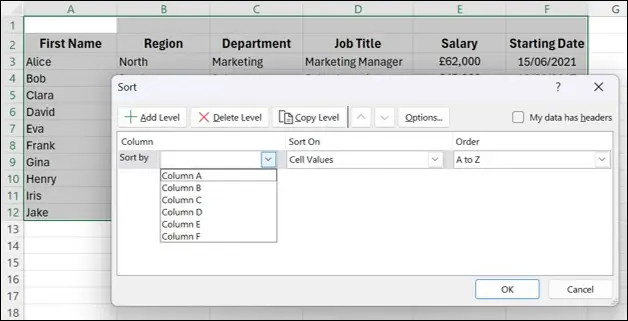
Sort is a brilliant, simple tool once you’ve got the one big rule down, select everything, every time.