Excel is well known for formulas, charts and Pivot Tables, but one of its most powerful time saving features is Excel macros. A macro automates repeated actions, so tasks that might take minutes manually (copying, cleaning, formatting) can be done in seconds. If you find yourself repeating a task more than once a week, it’s usually worth automating.
Two ways to build one
You can either record a macro, where Excel captures your keystrokes and clicks, or write your own VBA (Visual Basic for Applications) code.
Recording is the simplest option and perfect for beginners, go to the View ribbon, Macros, Record Macro, give it a name with no spaces, then perform your steps as normal and select Stop Recording once you’re done. Reviewing the code Excel generates for you afterwards is genuinely a great way to start learning how VBA actually works.


Writing VBA gives far more flexibility, and is often easier than expected once you get going, you can also edit code that’s already been recorded.
Access it via Alt+F11, right clicking a sheet tab and choosing View Code, or Developer ribbon, Visual Basic.
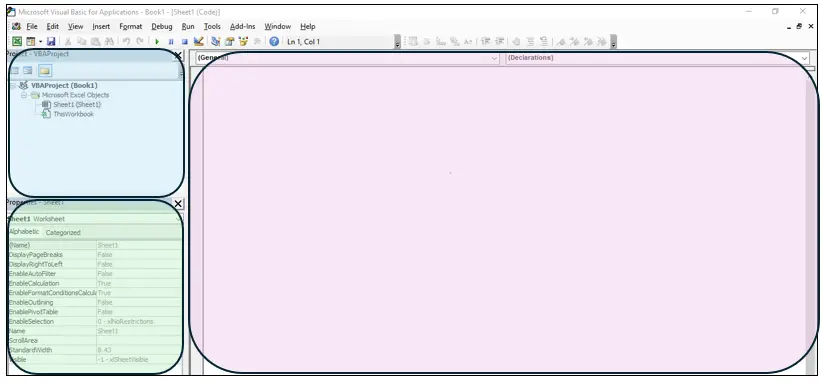
A recorded macro can only act on the specific columns you clicked, whereas written VBA can loop through every column and act only where a condition is met, even as your data grows.
Running a macro
Select the relevant sheet, go to View, Macros, View Macros, choose the one you want and click Run.
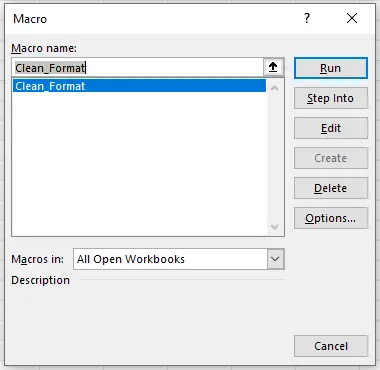
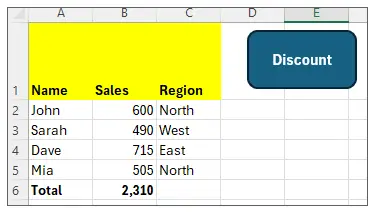
You can also assign a macro to a button (Insert, Shapes, drop a shape onto the sheet, right click, Assign Macro), which is a much simpler way to let non technical users trigger them themselves.
A few genuinely useful examples
Cleaning and formatting a weekly report that always arrives in the same messy layout.

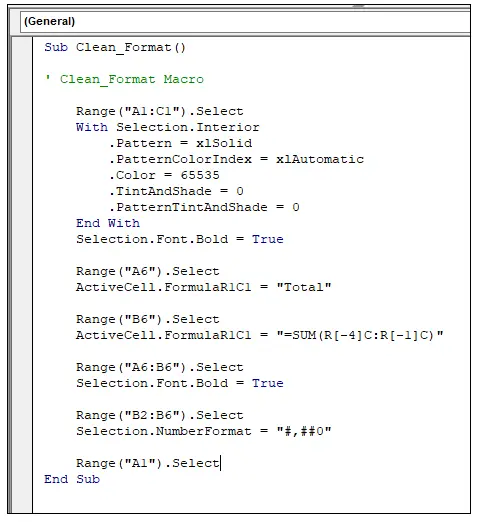
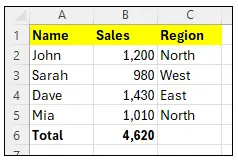
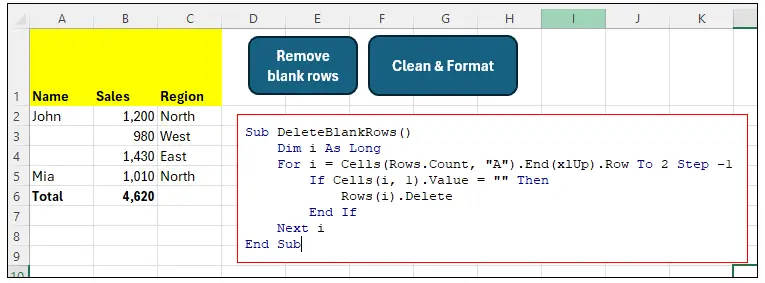
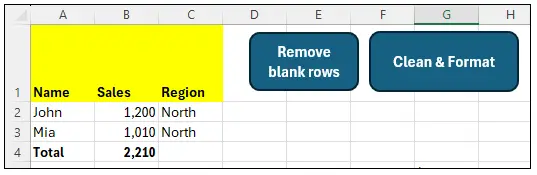
Removing blank rows automatically, looping from the bottom up so rows aren’t accidentally skipped.
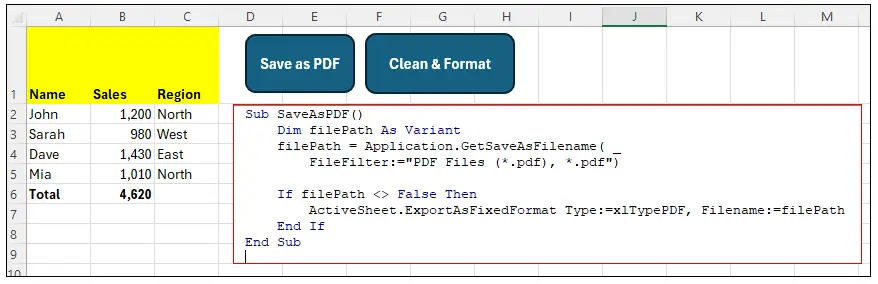
Saving the current sheet straight to PDF using your existing print settings.
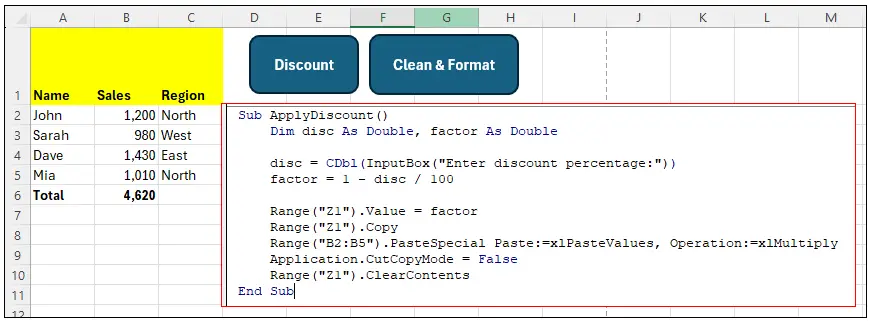
Applying a discount to a whole column in one click, no formulas needed at all.
Keeping macros safe
Macros can control more than just Excel, including files and Outlook, so Microsoft blocks untrusted macros by default for good reason.
Only enable macros from sources you genuinely trust, store files somewhere sensible, and consider a digital signature or password protection for anything sensitive.
Files containing macros must be saved as a Macro Enabled Workbook (.xlsm).
When macros aren’t the right tool
For heavy data processing, Power Query or Power Automate can often do a better job than a macro these days. VBA support also varies across Mac and web versions of Excel, and macros don’t exist at all in Excel Online.
Start simple with the macro recorder, and each new task you automate builds your confidence for the next one, until you’re automating workflows that once took you hours.